
Deliberato – Free SharePoint 2010 Theme
 We are happy to announce the release of our fourth Free SharePoint 2010 theme. Deliberato theme has 2 columns of fixed width and its main purpose is to help you get accustom with SharePoint branding and to give you some insight on the inner-works of SharePoint platform.
You can use the theme for free and without any restrictions. However, it is forbidden to sell or redistribute the theme without TopSharePoint.com permission. You may modify the theme as you wish at your own risk.
This work is licensed Creative Commons Attribution-Share Alike 3.0 License.
Theme Features:
– Two-columns
– Fixed-width
– CSS based
– Three master pages and one page layout provided
– jQuery Slider
– Random header image
– Top and left dynamic navigation
– Ideal for 1024×768 screen resolution
– Suitable for small SharePoint 2010 Publishing Sites


Instructions
To enable the Deliberato theme for SharePoint 2010 follow these simple steps.
Download the Deliberato.zip file and extract the files.
There are three folders in the zip file:
MasterPages folder contains three master pages. Homepage master page Deliberato-Home.master, the general master page used across the site Deliberato.master and the search master page Deliberato-Search.master. Import Deliberato-Home.master and Deliberato.master into the “Master Page” site objects for the main site using SharePoint Designer.

Also, import Deliberato-Search.master into the “Master Page” for Search site.

PageLayout folder contains a custom page layout created for this theme. This page layout allows you to display the left navigation and other custom functions. Import this custom page layout into “Page Layouts” site objects in SharePoint Designer.

And finally, the third folder called Deliberato contains a css folder, images folder and html folder with the slider used for the homepage.
Place Deliberato folder under your site root. Make sure Network and Network Service accounts have read permissions for this folder.

Once all the files are placed correctly, it is time to set the Deliberato.master as the default master page.
Go to your site homepage and click on Site Actions >> Site Settings.
Under “Look and Feel” click on “Master page” and under Site Master Page select Deliberato.master and click OK.
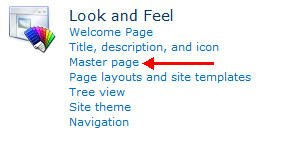

Go back to the Site Settings and click on “Page layouts and site templates”. Make sure you have the “(Article Page) Deliberato” on the right side pane for Page Layouts.

Go to your site and edit all the pages to inherit the custom page layout “Deliberato”.

Now, we need to take care of the homepage.
On your SharePoint Designer, under Master Pages, right click on the Deliberato-Home.master and select “Set as Custom Master Page”. This will set the Deliberato-Home.master as your default homepage master page.

Navigate to the homepage and edit it: Site Action >> Edit Page. click on “Add a Web Part” >> under Categories select “Media and Content” >> under Web Parts >> Page Viewer >> Click Add button.

Edit the newly added Page Viewer web part and type the following path in the Link textbox /Deliberato/html/Deliberato.htm. Add 580 (pixels) for the Height and 1020 (pixels) for the Width. Set Chrome Type to None and click OK. Next, make sure you see the Page Viewer web part populated with the custom slider and Publish the page and you’re done.

And finally let’s take care of the Search page.
We need to change the search results page first. On the homepage go to Site Actions >> Site Settings and under “Site Collection Administration” click on “Search settings”. Under “Site Collection Search Results Page” change the default setting to “/Search/results.aspx” and click OK. In order to see the “Site Collection Administration” option you need to be a site administrator.

Go to SharePoint Designer and Open Site (http://yourdomain.com/Search). Under “Site Objects” click on Master Pages and import Deliberato-Search.master from Deliberato package. Right-click on the Deliberato-Search.master and pick “Set As Custom Master Page”.

And, that’s all folks! Enjoy another simple and modern theme, and if you like it (or not) leave us a comment. It does help us to improve the next themes. Stay tuned for more!
Download Deliberato Theme for SharePoint 2010 Publishing Sites
If you like the theme don’t forget to leave a comment or maybe you would like to show your appreciation and buy me a beer!










 Loading ...
How do you make the “more” buttons in the rotator part to force the browser to open to a new page? Now, when you click on a “more” button, it opens the new page in the body of the default page, causing ugliness…
Scott, use target=”_top” for the link.
How can I change the images in the slider? I tried to update in the Deliberato folder under Html and the Deliberato.htm file. I store my images in the SiteAssets folder and change the src=”/SiteAssets/SharePointBanner.jpg”. I also deleted the information below the slider, because wanted to use webparts with other information.
I’m having a heck of a time getting the top Navigation Bar to display on anything but the home page in Internet Explorer.
It works without a problem in Chrome, but in IE the Nav Bar disappears whenever I navigate to any sub sites.
Any ideas?
Aha! It appears that the banner pictures are OVER the navigation items and therefore can’t click. I can see in the css that the z-index is higher on the navigation items than on the banner image, but IE is still not liking it. Any ideas?
Hi,
I’m having difficulty installing this via Office 365. Totally new to SharePoint but familiar with web design in general. Got setup with SharePoint Designer but as I go through these steps, I cannot see the “Page Layout” icon. I’ve searched in site settings to see if there is a feature I need to enable but there is nothing there. Can I even do this in my default site (Team Site) or do I need to create something afresh? Your help would be valued!
Rando,
Any luck to your issue yet? same problem here I cannot find Page Layout in the ribbon.
Ad
hi
I’m trying this theme in a development enviroment all work fine but their is a strange behavior, when I’m trying to create, update or delete a colum in a list or document library, the OK button don’t fire at all, and the delete button throw this error:”The security validation for this page is invalid”, what can be the problem? can someone help me?
thank in advance
Best regards
No scrollbars in popup dialogs, how to have them back?
pulseminus, make sure you have scroll set to yes in the body: body scroll=”yes”, or just remove the scroll.
Ok so I implimented the masterpage-home and I love the look and feel of it. But problem I have no idea how to edit the navigation bar an it pulls topics from my other sharepoint sites an Id rather them not included but when I go to “site actions—-> site settings” it shows the correct navigation bar so what’s going on why do I get two different navigation bars when in different locations I’d really like the one that shows in site settings. How does one edit such?
Yes, I have the same problem as Cassi. After I implement the theme on a subsite, that subsite has parent-level global navigation. However, I need global navigation on that subsite to include only pages under it and not links from parent. How do we adjust this?
I love this theme and in fact all of them. I have one issue though. I have several content editor web parts on different pages throughout the site. If I place my cursor in any of them, the content I am adding by pasting (text, images, links or files uploaded via the insert tab) always appears in the default editor at the top of the page. I then end up having to cut it from the default editor and pasting into the correct one further down the page. This happens to all the themes I’ve used.
Anyone know a way round this? It’s driving me nuts!!
Many Thanks
Hayley, it is because of the HasInitialFocus property is set to True. So, try to edit the Deliberato.aspx (Page Layout) and find HasInitialFocus=”True” (at the bottom) and change it to HasInitialFocus=”False”. Here is the whole line: PublishingWebControls:RichHtmlField FieldName=”PublishingPageContent” HasInitialFocus=”True” MinimumEditHeight=”400px” runat=”server”